SSH Access to Coffea-Casa @ UNL
Coffea-casa provides an SSH gateway that lets you open a terminal directly inside your Jupyter session from your own machine — no browser required once you have a token. You authenticate with your JupyterHub API token as the SSH password, pick a server image if your session isn’t already running, and land in a bash shell inside your coffea-casa pod (the same filesystem and environment you see in JupyterLab).
Endpoints
Instance |
SSH endpoint |
Get your token at |
|---|---|---|
Production ( |
|
|
Development |
|
Your username
Your SSH username is the e-mail address you log in to coffea-casa with, in one of two equivalent forms:
your plain e-mail, e.g.
firstname.lastname@unl.eduthe e-mail with
@and.replaced by-, e.g.firstname-lastname-unl-edu
All of these work:
ssh -p 2222 firstname-lastname-unl-edu@ssh.cmsaf-prod.flatiron.hollandhpc.org
ssh -p 2222 firstname.lastname@unl.edu@ssh.cmsaf-prod.flatiron.hollandhpc.org
ssh -p 2222 -l firstname.lastname@unl.edu ssh.cmsaf-prod.flatiron.hollandhpc.org
(SSH splits user@host at the last @, so the double-@ form is
fine.)
Important
Use the account you got your token from. If you log in to the hub with
more than one identity provider (e.g. a @unl.edu and a @cern.ch
account), each is a separate user — check the e-mail shown in the top
right of the hub page, and use that one as your SSH username.
Your password: a JupyterHub API token
The SSH password is not your institutional password — it is an API token issued by the coffea-casa JupyterHub. To get one:
Log in to the hub in your browser (https://coffea.casa for production) and open the Token page from the top navigation bar, or go directly to the token URL for your instance from the table above.
Optionally give the token a note (e.g.
ssh) so you can recognize it later, then click Request new API token.Copy the token that appears and use it as your SSH password.

Important
Tokens are accepted for 7 days. Regardless of the “Token expires” setting on the token page, the SSH gateway only accepts tokens created within the last 7 days, and older tokens are cleaned up nightly. If your login stops working, simply request a fresh token.
Connecting
$ ssh -p 2222 firstname-lastname-unl-edu@ssh.cmsaf-prod.flatiron.hollandhpc.org
password: <paste your API token>
If your Jupyter server is already running (for example, you have JupyterLab open in a browser tab), you’ll be connected straight into it — your SSH shell and your notebooks share the same pod, filesystem, and environment.
If your server is not running, the gateway offers the same list of server images you would see on the hub’s “Server Options” page:
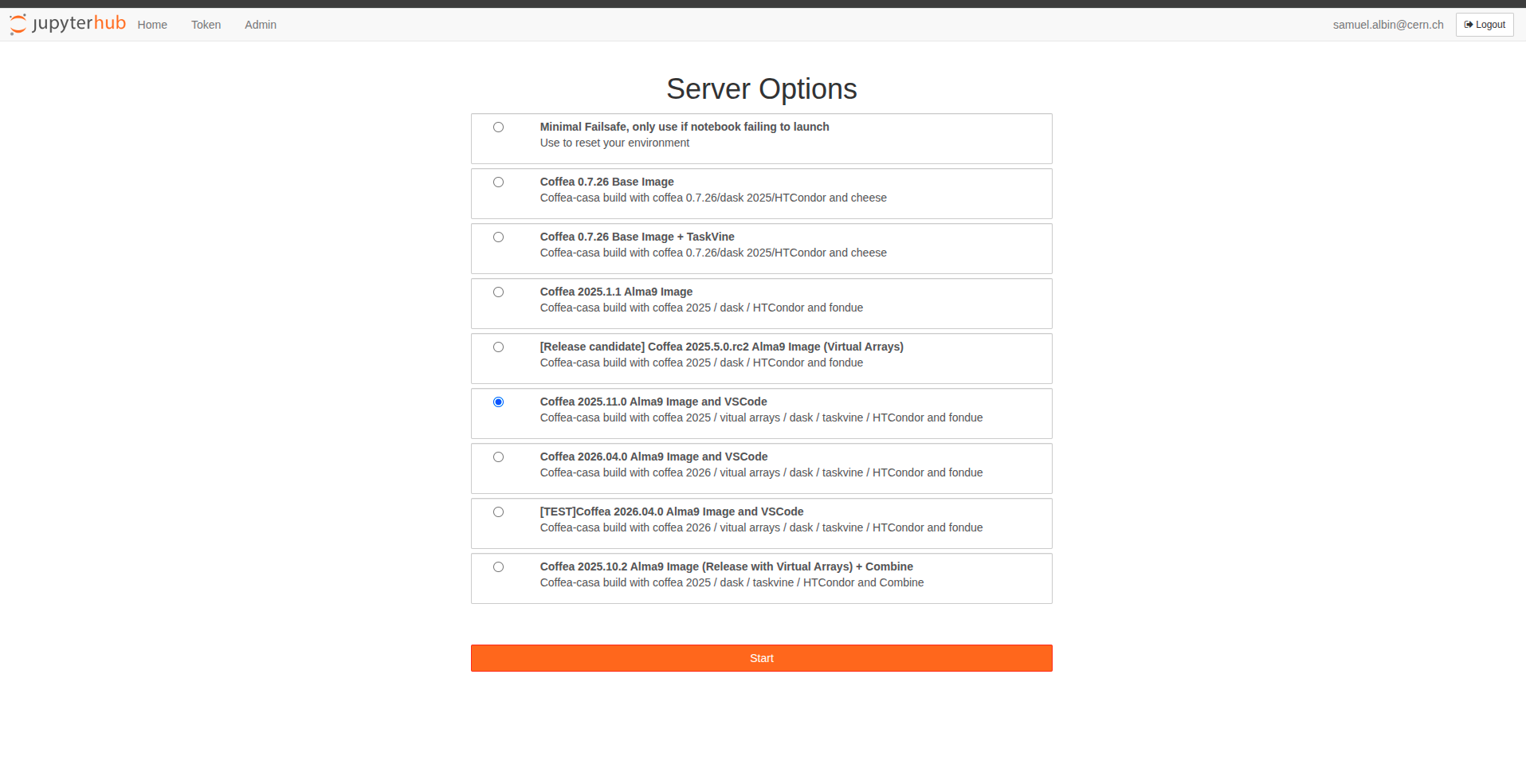
It then starts your selection and drops you into a shell inside it:
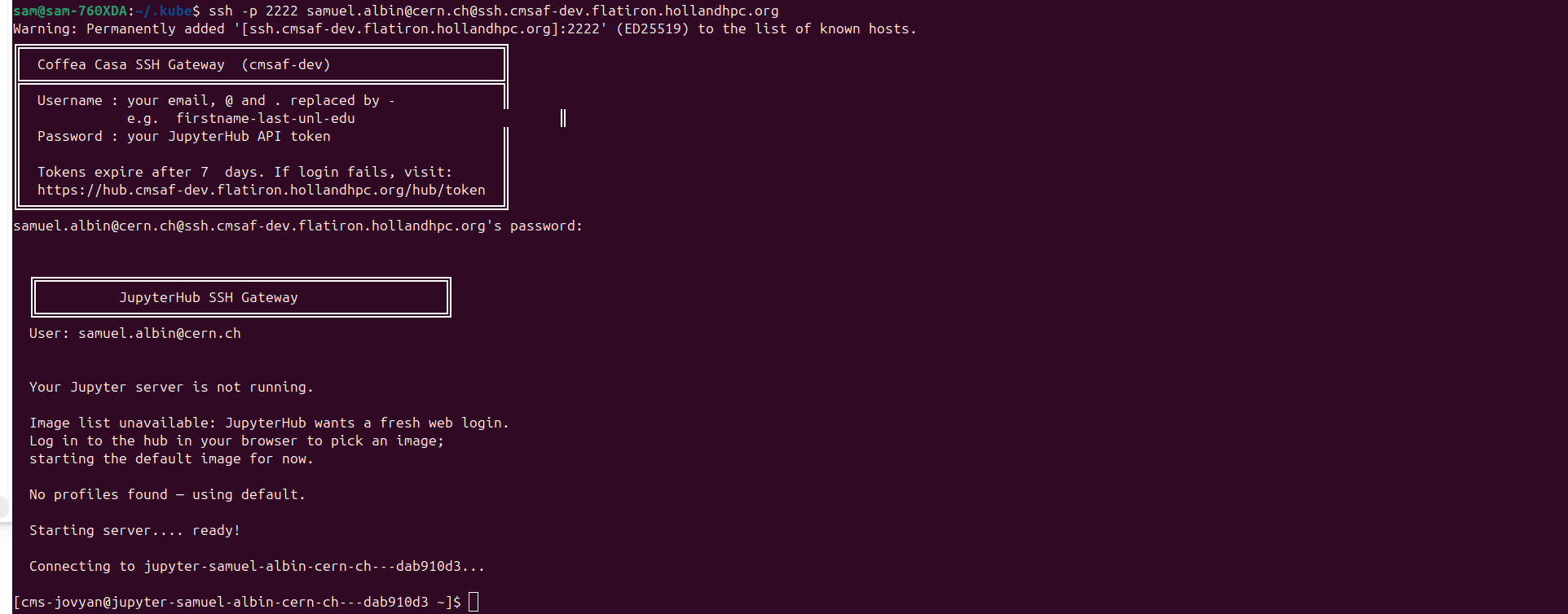
Note
The image list is only available when you have logged in to the hub in your browser recently. If the gateway prints “Image list unavailable: JupyterHub wants a fresh web login”, it will start the default image instead — log in to the hub in your browser first if you want to pick a specific image over SSH (or start the desired image from the browser and then connect).
Stopping your server
Your Jupyter server keeps running (and holding its resources) after you close the SSH session. To stop it, either:
Over SSH — reconnect to the gateway; when your server is running the menu offers:
[1]  Connect to running server
[2]  Stop server and restart with a new image
[3]  Stop server and disconnect
Choose
3to stop it (or2to restart with a different image).In the browser — from JupyterLab go to File → Hub Control Panel → Stop My Server, or visit the hub home page and click Stop My Server.
Troubleshooting
“Permission denied” — request a fresh API token from the token page (tokens older than 7 days are rejected), double-check the username form, and make sure you’re pasting the token as the password with no extra whitespace.
The image picker doesn’t appear — see the note above: log in to the hub in your browser first, then reconnect.
File transfer — the gateway provides an interactive shell only; use the JupyterLab interface (drag & drop, or the file browser) to move files in and out of your session.
Still stuck? See Community Support and Help.